Monday, June 04, 2007

the world accordion to me

One of the things I forgot to blog about last week was scriptaculous - a JavaScript framework that we started to work with in the face to face class.

A search for scriptaculous on Training o2 will turn up links to the stuff we covered. Have a browse through and then...

Install scriptaculous and see if you can't fix this FAQ so that it only shows the questions. When a visitor clicks on a question the FAQ content for that question should be expanded 'accordion style' onto the page. Just cut and paste the contents section off the FAQ page for this project, don't worry about the navigation stuff, then upload to the bathurst-tafe server and blog about it so I can go look.

For bonus marks, add a link in each FAQ answer that closes down that division, or automagically close any open divison when you open up a new one.

For 'hero' status, add code that ensures your JavaScript is accessible. (you'll need to do some research into accessibility and look into unobtrusive JavaScript)


Image: 'Toy Accordion'
www.flickr.com/photos/79483207@N00/123986970

Saturday, June 02, 2007

briefly back from a break


Hi folks, I've not forgotten you all, I'm just a bit busy at the moment with some assignments of my own (3 more and I finish my degree).

I've also been busy building a web site for students and trainers. Called Training O2 - it's a resource portal, and it's where I want to point you for our next educational foray.

If you have a look at the topic: Determine and apply appropriate development methodologies you'll find I've left some links there to various interesting sites (if your definition of interesting is somewhat broad, that is).

Your mission: read through the quick study resource, then browse the other methodology sites I've linked to. After you've thought about them a bit, come back to TO2, register, and vote on the methods you liked the most; or leave a comment on the quick study resource telling me which methodology appealed most and why (or, if none of them are your cup of tea, what you'd prefer to use). For bonus marks, see if you can find some other 'development methodology' links and post them to the TO2 site.

Hope the business card assignment's keeping you thinking - catch you next week,
peter

Monday, May 21, 2007

Another design project

Here's another assignment from Nicole, the design teacher:

Typographic Portraits

You will be assessed on your ability to:

Receive and interpret this brief

Generate a range of graphics in response to the concepts.

Hand work in on time and in the appropriate format.

TEACHER / ASSESSOR: Nicole Welch

DUE DATE: 5th June

RESULTS WILL BE PRESENTED AS A:MARK

DESIGN BRIEF:

Typography is the definitive tool for the designer and most design solutions can be found through an effective use of text. For this exercise you should try to move beyond the literal and take a more conceptual approach. You must use your own name for each of the following business card designs. This set’s limits on your use of words to solve the problem and you must instead find a creative visual solution.

Create a business card for each of the following personalities, using your own name each time. The text for each should read: (see examples.)

  1. My name is (your name) and I’m a Chameleon
  2. My name is (your name) and I’m an Acrobat
  3. My name is (your name) and I’m an Amphibian
  4. My name is (your name) and I’m a Taxi Driver
  5. My name is (your name) and I’m a TV Evangelist
  6. My name is (your name) and I have an Allergy
  7. My name is (your name) and I live in a nuclear fallout area
  8. My name is (your name) and I have the Hiccups
  9. My name is (your name) and I’m Accident prone.
  10. My name is (your name) and I’m a Magician.

In each design it is your name that will take on various visual attributes of the thing described.

Your graphics must share the same ratio as an actual business card but must be larger and at 300 DPI.


Image: 'untitled'
www.flickr.com/photos/13584435@N00/498752523

Bug Crushing

This week we'll be looking at squashing bugs.

First up though, you might enjoy finding out if you've got the makings of a programmer

Don't sweat it if it turns out you should be tending gardens instead of web sites, I haven't met anyone who couldn't do this stuff yet (just a few who can't seem to enjoy it much - go figure :-)

In my experience, the folks who enjoy programming the least are those who haven't got the hang of debugging.

The simple truth is that half your development time is going to be spent tracking down and fixing bugs, and the quicker you can do this the better you're going to feel about the whole coding thing.

So, without further preamble, here's a couple more sites describing the fine art of debugging JavaScript with firebug:

Finally, here's some Debugging Challenges for you to practice on. Once you've tried out a few, take a turn at creating one of each of the four bug types identified on the Wikiversity page.


Wednesday, May 16, 2007

firebug


This week we're going to start on a new subject: 'Locate equipment, system and software faults' (also known by its friends as ICAT4221A). You can read the gory details on the Training Packages Unwrapped site

If you've started doing any of the JavaScript challenges you should have plenty of material that needs troubleshooting :-) what I would like to do here is introduce a tool that will help with your fault finding.

It's a firefox extension called firebug - you'll need to install it and restart firefox before you can continue. Then have a look at the following couple of movies:

Once you've seen these, try setting a breakpoint and stepping through some of the JavaScript code you've written so far. Once you've gotten the hang of it, try introducing an error or two to see how firebug reacts.


Image: 'Grumpy'
www.flickr.com/photos/95118988@N00/217217600

Wednesday, May 09, 2007

a little mixed up

If you followed through the javascript exercises I recommended last week, you might have had some problems with the final parts of lesson 3 - turns out there were more than a couple of coding horrors buried there.

I won't spoil all your debugging fun by listing them, but here's some hints:

- strings must start and finish with the delimiter (a ' or a ") but cannot include that delimiter inside the string (unless you do some tricky escape character thing - look it up if you need to know how).

- if you use else if statements then the program will quit checking after the first if statement it finds to be true.

- the final if statement is all twisted up, and your error message won't show up properly if you run it the way its written.

And now, upwards and onwards...

it's time to look a little deeper into manipulating the document object model (DOM to its friends). Work through the javascript basics lessons six and seven. Then have a crack at these JavaScript challenges. Let me know how you get on with an upload and blog post . Don't rush this, there's some deep thinking required - but master it and you'll be on top of the client scripting pinnacle of fame :-)


Image: 'MichaelwheredyougetthosepeepersHQ'
www.flickr.com/photos/90732224@N00/367500518

image mapping


tying up a loose end in the html subject, we looked at image mapping - defining 'hotspots' on an image which become hyperlinks to other pages.

not particularly useful imo, but worth knowing about.

you can read up on the creature on the HTML code tutorial site, and if you're not too interested in coding by hand, Rany's found a great online tool that will ease the pain: the HTML-Image map Creator WYSIWYG

to practice, find a creative commons licensed image using flickrCC, build a web page around it and create some hyperlinks off it to relevant wikipedia articles. The example we used in class was a map with links to relevant cities/states, but any image offers possibilities - e.g. linking the eyes of a portrait to the article on eyes in wikipedia, let your imagination run with it.

Don't forget to add the attribution for your image.

As always, upload, add a link from your exercises page, and blog to let me know there's something to look at.


Image: 'Lost'
www.flickr.com/photos/25159586@N00/48302937

4x4


I just found out that the (X4) next to each of the topics in the Black Squares exercise mean that you'll need to create 4 images for each topic - that's 24 images in all - 96 black squares - 79,040 pixels

have fun.


Image: 'IMG_3116'
www.flickr.com/photos/15066227@N00/36422830

Wednesday, May 02, 2007

looking into forms


The first screen you'll need to build for a login application will be a simple form that asks for a user name and password.

To save the server unneccessary work, and your web visitor unneccessary delays while they wait for an answer, it would be good to have some way of preventing the form from being submitted until the visitor has entered both a name and a password.

We do this by writing some client side script which checks the form before it gets sent to the server. If it finds that either the name and/or the password fields are blank it should alert the user and let them remedy the situation before sending the form off.

Here's a blow-by-blow analysis...

Calling a script when the submit button is pressed

First we need a function to call. In the head section of your login form page, add the following script:


function validateForm(){
alert('we're now validating the form');
}

</SCRIPT>

And in the form tag of your page add an ONSUBMIT attribute that calls the function:

<FORM ONSUBMIT="return validateForm();">

Onsubmit is an 'event' that gets called when someone clicks on the submit button for a form. Try this out in your form and you should see an alert box when you click on the submit button.

Preventing the form from being submitted

If you had sharp eyes you might have noticed that the value for the onsubmit attribute said: "return validateForm();" - it returned a value picked up from the validateForm function to the browser.

If that value is 'false' then the browser will not process the form any further.

Don't just take my word for this, try it out by adding the following line to your validateForm function:

function validateForm(){
alert('we're now validating the form');
return false;
}

Now try submitting your form with some values in it and you should see that they stay there when you try to submit the form. It won't get submitted because you're passing the 'false' value that validateForm sends back through to the browser.

Checking for a form value

All well and good so far, but we still haven't got anything that checks the value our user's typed into the form.

To do this we need to add a little more code.

Firstly, we'll need to be able to identify our form elements. We do this by adding id attributes to the input tags, something like:

<input type="text" id="name" />

We can see the value in this field now by calling a JavaScript function: getElementById.

Try it by replacing your validateForm function with the following code:

function validateForm(){
alert('hello '+document.getElementById('name').value);
return false;
}

Type something in the name field of the form and submit it and you should see the name pop up in an alert box.

Go ahead now and add an ID and some JavaScript code to show the password in the same way.

Checking for empty fields

From here it's a simple task to check for an empty field and optionally show an error message.

Try this code in your validateForm function...

function validateForm(){
if (document.getElementById('name').value == '') {
alert('you must enter a user name');
}
return false;
}

Test it with and without anything in the user name field, then add some code that checks for a password in the same way.

Reducing user frustration

If you've gotten this far you probably have a script that brings up two alert messages if the user submits with both fields empty.

It would be better to just show one message with all the errors listed together. It would also be good if the form submitted properly when they've entered the required information.

We can kill these two birds by building an error message string during the testing phase of our script, and then either displaying the error message if there is one, or returning 'true' and allowing the form to be submitted if there is no error message to show.

It should look something like this:

function validateForm(){
var errormessage = '';
if (document.getElementById('name').value == '') {
errormessage = 'you must enter a user name';
}
if (document.getElementById('password').value == '') {
errormessage += 'you must enter a password';
}
if (errormessage == '') {
retrun true;
} else {
alert(errormessage);
return false;
}
}

What?

Let's look at what's going on here.

We start out by creating a variable called errormessage and assigning it an empty string (the two single quote marks side by side)

Then we look to see if there's any user name entered. If there isn't, we set the error message to prompt the user for one.

Next we check for a value in the password field. This time, if we find nothing, we add a message to whatever is already in the errormessage variable. By using the += we're telling the program to add a string to anything that's already in the variable.

Finally, we check to see if there's anything in our errormessage variable. If there isn't we return true, which will tell the browser to go ahead and submit the form.

If there is a message, we display it and return 'false', preventing the form from being submitted.

Try it out. Add the code and test it with the 4 scenarios (nothing etnered; name or password only entered; and both name and password entered)

Postscript

Just one little bit of tidying up to do.

Right now the error message for the 'nothing entered' case looks a bit ugly. To get the error messages appearing on seperate lines we need to add the newline character to our first error string:

errormessage = 'you must enter a user name\n';

There, now it's perfect :-)

Further reading

If you've still got some JavaScript curiosity left, I've put some pages up for you to read through. Try the first three JavaScript primers then take a well earned break.


Original image: 'The thief eats a seed'
www.flickr.com/photos/11334344@N00/124302244
by: Bob Travis

another piece of the puzzle


Continuing our 'intro to programming' series, here are a couple more worksheets...

Once again, try implementing your solution in JavaScript - upload and let me know where I can see it :-)


Image: 'Ice form'
www.flickr.com/photos/65919269@N00/218966763

designing - outside the box


I'm still worrying about the arty side, and asked what the other web students were up to. It turns out they've got an assignment. Here's the brief:

THE BLACK SQUARE PROBLEM

You will be assessed on your ability to:

  • Receive and interpret this brief
  • Generate a range of graphics in response to the above concepts.
  • Hand work in on time and in the appropriate format.
TEACHER / ASSESSOR: Nicole Welch

DUE DATE: 15th May

RESULTS WILL BE PRESENTED AS A: Grade
This assessment is Grade code 72:
Distinction 83% to 100%
Credit 70% to 82%
Pass 50% to 69%

DESIGN BRIEF:
Using only four black squares for each design, create graphic images to express the meaning of each of the following six words:

  1. Order (X4)
  2. Increase (scale) (X4)
  3. Bold (X4)
  4. Congested (X4)
  5. Tension (X4)
  6. Playful (X4)

Consider the following principles to help you find creative solutions:
Framal reference, touching, overlapping, cropping, contrast of size and the dynamics of negative –positive relationships.

SPECIFICATIONS

Each graphic must be:
  • Created in Photoshop and saved as a JPEG or GIF.
  • 10cm x 10cm
  • 72 DPI
Note: Always keep a copy or record of your assignment. Loss or misplacement of your assignment will not be accepted as an excuse for non-submission.

I'm pretty sure we can manage this one online too - with a few minor adjustments :-)

For starters, I'm not overly concerned about what graphic editing package you use. My personal preference would be the Gimp, but use whatever you're comfortable with.

Also, I'd like you to experiment a bit with the presentation. You could try some JavaScript gallery script to create a page of your own, or upload the images to flickr and make a slideshow there, then look for scripts that you can include on your own web pages to display the flickr slideshow - do a search for options. As always - put a post on your blog with a link to your efforts (and some comments on what you've learnt along the way).

Nicole also had a little exercise for you to try. Take a look a some of the sites featured on web pages that suck - pick your two favourites and link back to them in a blog post about what you hate about them most (or find a couple all by your lonesome and write about them instead). Then do the same with two sites that you admire. You might start your search by browsing through this flickr photoset. Once again, link back to them in a blog post about what you like about these sites.


Image: 'a crowd'
www.flickr.com/photos/48553010@N00/111126800

Monday, April 30, 2007

log on


Consider this scenario: You need to build a login so that users can leave comments on your web site.

The processes that need to be implemented would include:

  • Logging in
  • Creating new accounts
  • Sending lost passwords
  • Editing account information
How would you design this 'web application' and represent it as a flowchart?


Image: 'climbing'
www.flickr.com/photos/19907278@N00/6107473
by: Ard Hesselink

Saturday, April 21, 2007

design or die

hi folks,
I haven't forgotten you (I've just been ignoring you all :-)

I'm a bit worried about how much emphasis I've been putting onto the nuts-and-bolts side of the web development process. For the face to face students that's fine - you've got other teachers to take you through the tools, design and documentation elements; but for the online folks, there's been a bit of a gap in your official education.

So, it's time to change all that. To kick off, lets start looking into design elements.

I just came across a pretty reasonable article where 35 designers were each asked 5 questions about their design practice. Result: 175 professional suggestions, tips and ideas from some of the best web-developers all around the world. This has got to be better than anything I can cook up. Check it out at SmashingMagazine

Another area I've been worried about is the planning and contract side of the webdev biz.

Now, I know you're all over podcasting, since I gave you a link to the excellent Ask a Ninja explanation, and... good news, Boagworld have just finished covering client contracts in nitty, real-world detail over several podcasts (starting in week 64). Check it out at the Boagworld podcast archive

Hope you're all fired up with enthusiasm, this should be an interesting few weeks...

Wednesday, April 04, 2007

forming up

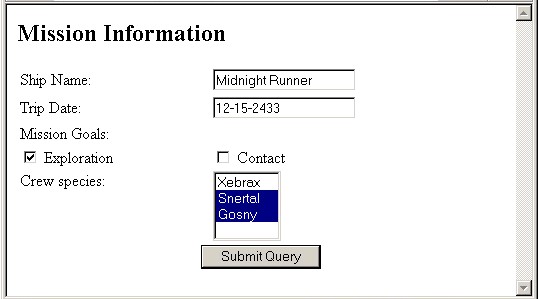
This week we'll played with some nifty form elements. The W3C have the definitive word on forms here, or you can find a gentler introduction on Tizag.

Once you've gotten across it all, try to implement a simple form. See if you can re-create the following useful web page:


To get it looking just like this, you'll need a couple of divs, one floated to the left, or you might want to see how the pros do it on the create forms using CSS page.

Once you have the form all built, set its "action" attribute to point to http://www.bathurst-tafe.nsw.edu.au/~pshanks/dump-globals.php

Try it out with both GET and POST methods.

That should be enough to get you through the Easter break, see you all in a couple of weeks and don't eat too much chocolate.

spread your programming wings and fly


If the JavaScripting hints in the last programming post were too obscure, here's a link to an exercise with a little more meat to it - it includes all the script tag, prompt and alert messages you could possibly want to complete the first week's exercises for 'sequence'.

To follow up, we'll be looking at how to represent 'selection' in pseudocode and flowcharts. There are some paper exercises in this little document - try them out and then see if you can implement exercise 2 and 3 in JavaScript. You might find JavaScript Basics Part 2 useful. As usual, upload your solutions and add a blog entry about your trials and tribulations.


Original image: 'Transparent dove'
by: Vince

it's podcasting, Jimmy


all about podcasting

Sunday, April 01, 2007

Programming can be fun

Just so you don't turn out like the poor ex-student shown here, I've uploaded a couple of 'ease-into-programming' worksheets.

Try out the first few:

When you get to the exercises at the end of each, try to implement your designs using JavaScript. To do this you will need to know a little about setting up a script section, creating variables, getting input from the user, and writing output to the web browser.

Have fun, and please... if you find yourself waving the keyboard around and screaming, take a break and think about just how stupid the average computer really is.


Original image: 'Programming'
by: Jean-Philippe Daigle

Saturday, March 24, 2007

what was, is and could be


today's movie is a little bit of history and some science fiction...

Set in 2014 it charts the history of the Internet, the evolving mediascape and the way news and newspapers were affected by the growth in online news. It coins the word "Googlezon" from a future merger of Google and Amazon, and speaks of the upcoming news wars with the Times, who take Googlezon to court for copyright infringement."

There's some good food for thought in this short flick. I hope you enjoy it as much as I did.

Wednesday, March 21, 2007

code cutting


Now is the time, the walrus said, to speak of many things...

It's time to get serious about writing code. To start we'll explore some programming concepts (sequence, selection and iteration), along with some ways that people go about planning their programs (using IPO, or input, processing and output charts; pseudocode; flow charts) - and one that no-one should ever have to use: Nassi Schneider diagrams.

For this subject (Automate processes, also known as ICAB4225A), I've started to put together a regular on-line course. You can find it on http://moodle.bluemountains.net

Create a log-in on the site, then click on the link marked Automate Processes. Once you're there, read through the scenario and then the reading for topic 1 before trying out the topic 1 exercises. Finally, have a crack at Assignment 1 and upload it via the moodle interface (at the bottom of the assignment 1 web page).

If you're having trouble, blog, email, meet in the Bathurst IT meeting room (Wednesday 1pm - 2pm) or wait on my next phone call - but whatever you do - DON'T PANIC


Original image: 'Flock code'
by: Will Pate

PractiCSS


Time to put our CSS skills to use...

Try CSS Challenge #3 (you might want to try 1 and 2 as well). Once you've got it right, upload to your web space and write a short blog post pointing to it.

If you haven't tried your second ftp client yet, now would be a good time to pick one from the list, install it, and take it for a spin - then post an entry on your blog comparing it to your first client. Which one (if either) will you be using from now on and why? I need this second ftp entry before we can finish off the Transfer Content subject.


Original image: 'Practice + Pain = Pose and Poise'
by: Pandiyan V